


Your site runs without any problems on your laptop. In the meantime, one of the customers claims that it is broken. You receive e-mail bounced and a verification step continues to fail. Your dashboard appears to be set up properly. But what is wrong?
A lot of times, it’s in your DNS records. One wrong number can direct your visitors to the wrong server, or you could push your mail into the void. Thankfully, you can find out the truth in seconds. A DNS lookup tool displays the information of the internet when it queries your domain.
This guide will tell you what these records are, what choices you have, and what information you can find in the results. First, you’ll see how a lookup works. Next, you’ll be able to compare popular options in a clear table. Next, you’ll be provided with a practical approach to troubleshooting. Last but not least, you will have fast answers to frequently asked questions. Let’s dive in.
Table of Contents
What a DNS Lookup Tool Does and Why It Matters
Consider DNS as the internet phonebook. Computers require numbers, people require names. DNS converts one to the other. The lookup is a request to the phone book – what it has to say about a domain.
There are two types of servers involved. Authoritative nameservers contain the authoritative information for a domain name. Recursive resolvers – these are provided by internet service providers or public services that will fetch answers for you and store them in their cache. As a result, the observations made will differ from person to person. Remember that in mind everything that is confusing is explained by that idea.
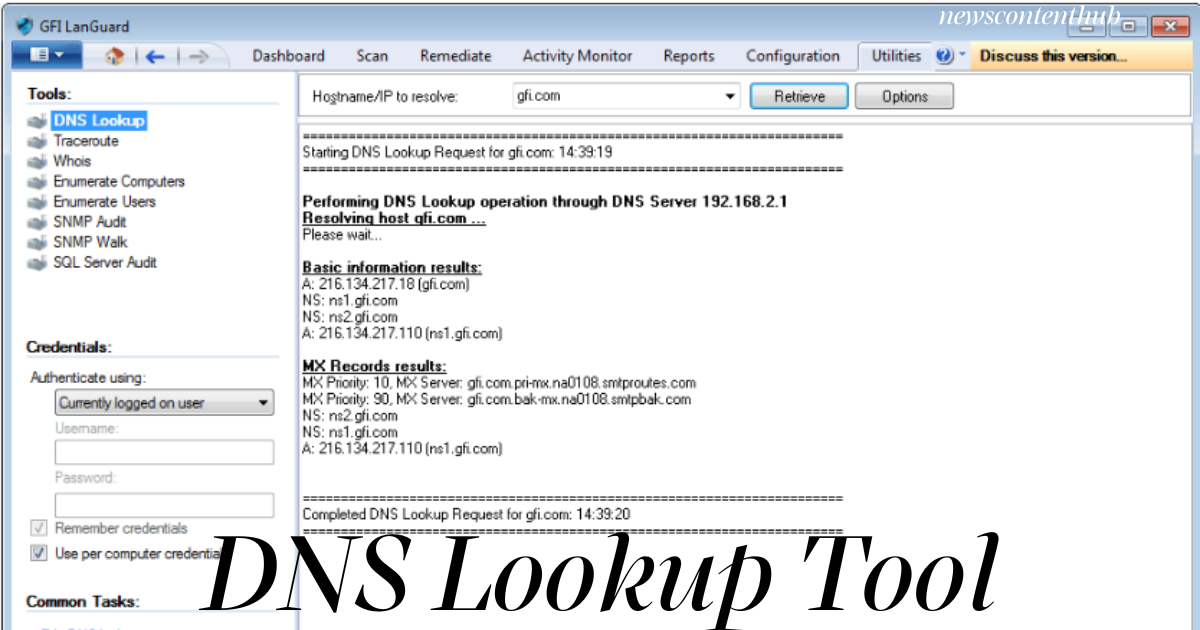
The output of a DNS lookup tool. Fetches the records published for a domain. Those records reveal how the domain performs in relation to the services they provide for web hosting, email routing and security. Some tools actually query the authoritative nameservers. Therefore, the results are not cached, but rather reflect current settings.
Meet the primary types of records. All of them respond to a single question.
A record is an association of a name to an IPv4 address. Typically provides information about the location of a site to browsers.
AAAA record: performs the same function for IPv6, the new version of addresses.
MX record: Identifies the mail servers. Priority values determine the order the mail gets sent and determine which is the backup server.
Other records are under the control of authoritative nameservers, as indicated by the NS record.
There are also TXT record types which contain free-form text. It is used by Owners for verification and email authentication, including SPF, DKIM, and DMARC.
CNAME record: makes one name an alias for another. It is commonly used on subdomains such as www.It is frequently used on www subdomains.
SOA record: contains administrative information for the zone, such as the timing information and who is responsible for the zone.
PTR record: A record that is used for reverse lookups that return a name from an address.
Why is this important? There are a lot of those records and each one could break something. If the link to the A record is incorrect, visitors will go someplace else. If an MX record is not present, email is lost. If the TXT record is broken, your messages may appear suspicious. So, checking the records first will save hours of guess work.
Understanding DNS TTL, Cache Propagation, and Domain Migration
Next, consider caching. Each record has a TTL (Time To Live). TLL is used to inform the resolvers of the time they can store a cached response. Short values push changes further; they increase the load on the queries. Long values decrease traffic, but slow an update. As a result, what you are changing this morning might not be in effect for everyone. It takes up to 48 hours to propagate around the world and local/Provider caches can have old answers until TTL expires.
Here is the take home lesson. If you are planning to make a change, reduce the TTL one day or two days in advance. Change the TTL, confirm it and then increase the TTL again. This is a straightforward procedure that helps to minimize downtime and stress, particularly during peak seasons or product launches.
Last but not least, keep in mind who is gaining. Site owners perform lookups prior to and after migrations. They are employed by marketers to verify email set up. They are used by developers for debugging Apps. In the meantime, they are used by security teams in order to detect suspicious changes. Basically, it is a skill that is required by anyone and everyone with a domain.
Think of a typical migration. You change your domain to a new host and change your A record. Then you reuse the page again and there’s still the old page. Panic sets in. But the record could be right and a cache might contain the old answer. It’ll save you from having to redo a perfect change and a quick look will tell you the real value.
Available DNS Lookup Tool Options – at a Glance
There are lots of options available and a snapshot is very useful. Below is a list of common options broken down by their strengths. Features change, and descriptions are taken from published tool round up. So, use the table as a jumping off point.
| Option | Best For | Use It When |
| Any basic DNS lookup tool in a browser | Quick checks of A, MX, NS, and TXT records | You need a fast answer with no setup |
| dig (command line) | Fine control and scripting | You work in a terminal and want compact output |
| nslookup | Windows and minimal systems | dig is not installed |
| MxToolbox SuperTool | Email checks, including MX, DMARC, DKIM, blacklists, and MTA-STS | Mail delivery looks broken |
| DNSChecker | Propagation checks and domain health reports | You want color-coded output that beginners can read |
| whatsmydns.net | Visualizing global propagation on a map | You are mid-migration and watching changes spread |
| IntoDNS | Health checks of nameservers, SOA, and MX setup | You inherited a domain and need an audit |
| DNSViz | Debugging the DNSSEC chain | Signatures or DS records look wrong |
| DNSWatch | Lookups from several regions, showing TTL and resolver | You want regional answers without an account |
There are three points of interest. First, there’s standard browser choices that’ll take care of the majority of common checks. Second, there are specialists for propagation and security and email. Third, command-line tools provide the user with greater control, but need to be learned.
Take a moment to observe overlaps in the choices. There are several choices that display A records and each with its own additional. Some highlight email. Others point to the global or DNSSEC aspect. You can use two or three over time, therefore. This is nothing unusual.
How to Chooseit: Pricing, Safety, and Accuracy
There are also variations in pricing. According to one roundup, ViewDNS has more than two dozen free utilities. It also states that HackerTarget provides up to 100 free queries per day, and that DNSWatch doesn’t require an account for its basic interface. But the same roundup does not include the prices for most of them. So, confirm the latest conditions of each company before you depend on them.
Safety matters too. Only public records will be found by looking it up. They don’t reveal account information, files, or passwords. Therefore, any domain, yours, a competitor’s or a client can be checked without special authorization. It is not only a handy tool for repairs but a look-up habit that would come in handy for research.
Before you select, think of your goal. If the answer you need is just simple, select a Browser Form. For automation, learn about the dig. If you’re having a headache with email, begin at the email end. If you have recently switched nameservers, a propagation map tool will aid you in monitoring the progress.
Budget also is a factor. There are almost all free options that cater to the needs of a beginner. Most paid plans include features such as monitoring, alerting, history and automation. So, in general, use a free option, find what you need, then upgrade only when it is needed. That way you will save money and time.
There is one warning that needs to be considered. Various tools might require different resolvers. So it is possible for two tools to give different results at the same time. This isn’t always a bug. In many cases, a resolver just has a cached copy.
The step-by-step process of using a DNS Lookup Tool.
Knowing the options is one thing, knowing to take advantage of them is quite another. Reading results well is another. To get accurate results from any DNS look up tool follow these steps:
Begin at the A record. Type in your domain and check the address. Does it match with your host? If not, you’re losing points on your site. Then check AAAA too, as it is possible that an old address might cause weird, sporadically occurring issues.
How to Check DNS Records for Email, Nameservers, and Caching Issues
Make sure you have checked the MX records. Look at the mail servers and their priorities. Typically, lower numbers are first tried. Be sure to enter the values exactly as your email provider has indicated. A small misspelling of a word can cause delivery to fail.
Read the Text records. Check the presence of SPF, DKIM and DMARC records. Furthermore, look for verification strings from services that you use. Redundant (duplicate) records and conflicting records lead to confusing failures.
Confirm the nameservers. NS is an acronym for Name Server, and it will indicate who controls your DNS. Changes made at one provider but nameservers referencing other provider will never be seen. Unfortunately, this is a very common error.
Check the CNAME for subdomains. Ask what is the subdomain of the site such as www or blog. Check it is referring to the correct destination. Keep in mind that aliases are target dependent.
Look at the TTL. The TTL is a duration indicating the time during which the answers will remain in the cache. If you see a long value, and you need a quick change, then you may have to wait. One of the standard approaches is to reduce the TTL prior to a change and increase it following the change.
Compare resolvers. Use dig to send a specific resolver, using an at-sign (@) and an address, such as dig @1.1.1.1 example.com or dig @8.8.8.8 example.com. If they all differ from your default resolver, then it probably lies on that resolver’s end.
Practical DNS Troubleshooting Tips Using Dig and Reverse Lookups
Follow arrows if they get stuck. The dig +trace option traces all the way down from the root servers. Therefore, it can uncover exactly where a chain breaks.
Opt for the short form of output if the time is limited. The essentials are enhanced by adding +short trims results. For instance, dig example.com MX +short displays the mail servers and the priorities.
Prevent the use of the ANY query. It is not accepted by many servers. Rather, request record types in a sequential manner.
Test in various locations. Take another shot, or get a different resolver. You can trust the answer if both agree! If they don’t, then they probably have a caching issue, try again later.
Look up the name of the object if necessary. A reverse query is one that resolves the address to a name. It is used frequently by mail administrators, as some mail systems check it.
Common DNS Problems and How to Identify Their Causes
Make a copy of the file first, if you want to edit it. Make a note of your existing records. When something goes wrong, you are able to pull back to the previous values in a fast way. Wait until the caches have expired before retesting.
Next, we will link the symptoms with possible causes. These patterns are repeated over and over again.
- The site is served by an old server, either the A record is incorrect or the cache contains the old value.
- Email bounces: The MX records are not the same as the MX records provided by your provider.
- A verification step fails – the TXT record is not found, mis-typed, or on the wrong name.
- The bare domain is operational, but the www domain is not: www record or CNAME is missing or incorrect.
- The site is on the home network but not at the office, with two resolvers having different cached answers.
Use these as examples, but not assurances. Nevertheless, they draw you in to the correct record quickly.
To help you figure out the best DNS lookup tool to use, follow this checklist:
Don’t panic, go through this quick checklist. Check the A record. Check the MX records. Read the TXT entries Confirm the nameservers. Compare two resolvers. Then lastly, make a note of the TTL and, if necessary, wait. Most DNS mysteries can be solved by these 6 habits.
Make your notes neat, as well. Record the date, the record, and old and new values. Later, that small log will assist you or team mate to understand what has changed. Besides, it transforms a stressful outage into a step-by-step fix.
Conclusions about the DNS Lookup Tool
Keeping DNS simple, there are some basic steps to take to resolve most issues. The look-up is a great aid to turning guesswork into proof. Displays your site points, your email, and the amount of time it takes for changes to propagate.
This of course depends on the resolver and cache. But the habit remains essentially unchanged. Don’t panic, check the records, compare sources and wait for the TTL. So, bookmark one browser option and learn one command line utility today.
Start small. Choose your own domain and play each record once. You’ll be able to pick up on anything unusual in no time. Once this is done, repeat the check whenever you change hosts, email providers, or nameservers.
Frequently Asked Questions FAQs
Q1: What does a DNS lookup tool show?
It shows the DNS records published for a domain. Those records include A, AAAA, MX, NS, TXT, CNAME, and SOA entries. Together, they reveal where the site is hosted, where email goes, and which nameservers control the domain.
Q2: Which DNS lookup tool is best for email problems?
A mail-focused option such as MxToolbox SuperTool works well. It checks MX, DMARC, DKIM, blacklist status, and MTA-STS in one interface. Start there when messages bounce or land in spam.
Q3: How long do changes take to appear in a DNS lookup tool?
Changes can take up to 48 hours to spread worldwide. The TTL value controls how long resolvers cache old answers. Lower the TTL before a planned change to speed up the switch.
Q4: Should you use dig or an online DNS lookup tool?
Use whichever fits your task. Online forms are quick and need no setup. Meanwhile, dig offers finer control and suits scripting. On Windows, nslookup covers similar ground when dig is unavailable.